
 by
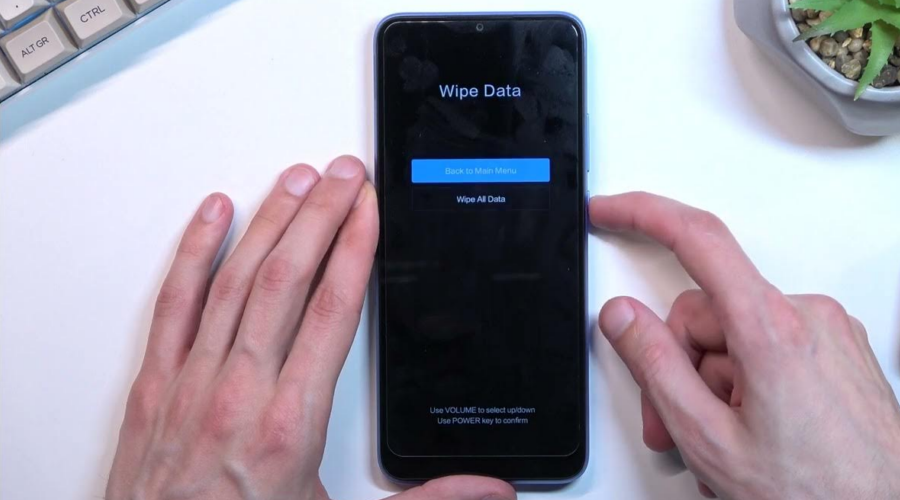
by Performing a factory reset can help fix software issues, remove viruses, or restore your device to its original state. However, many users find themselves locked out or lose important data afterward. If you’ve just reset your phone, tablet, or laptop and can’t access it, this complete factory reset recovery guide will walk you through how to unlock your device and recover your lost files safely.
Understanding Factory Reset and Its Impact
A factory reset erases all personal data, apps, and settings from your device, returning it to its default condition. While it’s useful for troubleshooting, it can also remove stored passwords, files, and account details. This is why data recovery becomes essential afterward.
Common scenarios that lead to needing a device unlock or data recovery include:
- Forgetting your Google or Apple ID password after a reset
- Accidentally erasing personal data
- Locked out due to FRP (Factory Reset Protection)
- Losing access to photos, videos, or documents
In this data recovery guide, we’ll show how to unlock access, restore deleted data, and prevent future lockouts.
Step 1: Confirm Your Account Credentials
After a reset, most modern devices (especially Android and iOS) require you to sign in using your original account. This security layer, called Factory Reset Protection (FRP), prevents unauthorized access. Make sure you use the correct login credentials linked to your device before the reset.
If you’ve forgotten your password, use the official recovery links:
Recovering access through your registered email or phone number usually resolves most device unlock issues.
Step 2: Use Device-Specific Unlock Tools
If you can’t access your device even after password recovery, you can use official or third-party unlock tools. For Android devices, tools like Samsung Find My Mobile allow you to unlock remotely. For iPhones, Apple’s Activation Lock support provides detailed steps.
For users seeking a step-by-step breakdown of these methods, check out our related post on how to unlock Android and iPhone devices safely (example.com).
Step 3: Perform Factory Reset Recovery for Lost Data
After a reset, all locally stored data is wiped. However, if your data was synced to cloud storage, recovery is possible. Let’s explore the best methods for factory reset recovery:
1. Recover via Cloud Backup
Most devices automatically back up to the cloud. You can restore files by signing back into your account. For example:
- Android: Google Drive or Samsung Cloud
- iPhone: iCloud Backup
- Windows: OneDrive
Simply log in and choose the latest backup to restore your data. If cloud recovery isn’t an option, continue with local recovery methods.
2. Use Data Recovery Software
If your data wasn’t backed up, try professional recovery tools. Applications like EaseUS Data Recovery Wizard or Wondershare Dr.Fone can scan your device’s internal storage to recover deleted photos, videos, and documents.
Follow these steps for most recovery tools:
- Connect your device to a PC or laptop.
- Open the recovery software and scan your device storage.
- Select the files you want to restore and save them to a secure location.
These programs are often lifesavers in factory reset recovery when no backups exist.
Step 4: Restore Apps and Settings
Once your device is unlocked and data recovered, restore your apps and configurations. Both Android and iOS allow automatic restoration during setup:
- Log in with your Google or Apple ID
- Choose the most recent backup
- Wait for your apps, contacts, and settings to sync
This ensures a seamless recovery experience and brings your device back to its familiar state.
Step 5: Prevent Future Lockouts
To avoid similar problems in the future, consider these best practices:
- Always note down your Google or Apple ID credentials
- Enable two-step verification for added security
- Back up your device regularly (Google Drive, iCloud, or external storage)
- Use screen lock patterns or fingerprints for easy access
By following these preventive measures, you can reduce the risk of future device unlock or factory reset recovery issues.
Step 6: Advanced Unlock Options for Android Users
For advanced users who’ve tried everything but are still locked out, there are a few extra solutions:
1. Android Device Manager
Visit Google Find My Device and sign in using your Google account. You can unlock, erase, or locate your device remotely.
2. ADB (Android Debug Bridge)
If USB Debugging was previously enabled, you can use ADB commands to bypass the lock screen. This method is for tech-savvy users and requires connecting your device to a computer and using command-line tools.
To learn more about safe ADB usage, read our detailed guide on advanced Android recovery and unlock tools (example.com).
Step 7: iPhone and iPad Recovery Options
Apple users can unlock and restore their devices using iTunes or Finder:
- Connect your iPhone or iPad to a computer.
- Open iTunes (or Finder on macOS Catalina and later).
- Put your device into recovery mode.
- Select “Restore iPhone” and follow the prompts.
After restoration, sign in using your Apple ID to complete activation. You can then restore backups from iCloud or iTunes.
Step 8: Data Protection After Recovery
Once your data is recovered, take steps to safeguard it. Consider encrypting important files and using secure password managers like LastPass or 1Password.
These tools help protect sensitive information and simplify account recovery in case of future issues.
Step 9: Seek Professional Assistance (If Needed)
If all else fails, professional technicians can help. Visit authorized service centers or certified data recovery specialists. They use advanced tools to bypass locks and retrieve lost data without voiding warranties.
Before handing over your device, ensure they’re verified professionals. Some online forums or unverified repair shops may use unsafe methods that risk permanent data loss.
Conclusion: Recover and Unlock with Confidence
Facing a locked or wiped device can be stressful, but with the right approach, factory reset recovery is entirely possible. Whether it’s a forgotten password or missing files, modern tools and recovery solutions make it easier than ever to unlock your device and get your data back.
Remember — prevention is better than cure. Always back up your data, store login credentials securely, and use reliable software. For more helpful tips, explore our guide on best data protection tools and recovery software (example.com) to keep your devices safe and accessible.